Why Maintenance Matters for Gaming Gear
Gaming peripherals endure more physical stress than standard office equipment. Rapid clicking, aggressive mouse movements, and extended sessions all contribute to wear that can degrade performance over time. A well-maintained mouse tracks more consistently, clicks more reliably, and feels better in hand than a neglected one. Maintenance is not just about cleanliness; it is about preserving the tactile and mechanical qualities that made the gear appealing in the first place.
Regular care also helps you avoid premature replacement. Many gamers discard peripherals when they begin to feel sluggish or unresponsive, assuming the hardware has failed. Often, the root cause is accumulated debris, worn feet, or software drift rather than a genuine defect. By incorporating simple upkeep routines, you can keep your current setup performing well and make informed decisions when it is genuinely time to upgrade.
Cleaning the Exterior and Sensor
The exterior of a gaming mouse collects oils, dust, and sweat during use. Wipe the shell weekly with a slightly damp microfiber cloth, using water alone or a mild soap solution for stubborn residue. Avoid alcohol-based cleaners on rubberized or textured grips, as these can dry out the material and cause flaking or discoloration over time. For the mouse wheel, use a dry toothbrush or compressed air to dislodge dust that settles in the grooves, since buildup here can cause scrolling inconsistencies.
The optical sensor is the most critical component to keep clean. Dust and hair particles that enter the sensor cavity can cause tracking skips, jitter, or apparent lag. Turn the mouse over and inspect the sensor opening under good lighting. Use a can of compressed air with a short burst to clear the cavity, holding the can upright to avoid spraying liquid propellant. If debris remains, a dry cotton swab gently rotated inside the opening usually removes it. Never insert metal tools or sharp objects into the sensor housing, as the lens is fragile and easily scratched.
Preserving Mouse Feet and Glide Performance
The skates or feet on the underside of a gaming mouse are essential for smooth, low-friction movement. Over time, these pads accumulate grime, develop scratches from the mousepad surface, or even lift at the edges. To extend their life, keep your mousepad clean and free of abrasive particles. A dirty mousepad acts like sandpaper under the skates, accelerating wear and creating drag that many users misattribute to the mouse itself.
When cleaning the feet, wipe them with a dry cloth after each session to remove dust and oils. If the pads become visibly scratched or the edges begin to catch on the mousepad, replacement skates are widely available and inexpensive. Swapping feet is straightforward: peel off the old pads, clean any adhesive residue with isopropyl alcohol on a cloth, and apply the new set. This single step can restore the glide feel of a mouse that seemed ready for retirement, and it is worth trying before replacing the entire unit.
Cable Care for Wired Peripherals
Cable management is often overlooked but plays a significant role in the longevity of wired gaming mice. The point where the cable meets the mouse housing is a common failure area, as repeated bending and stress can fray the internal wiring. Avoid wrapping the cable tightly around the mouse base for transport, as this creates sharp bends that weaken the conductors over time. Instead, coil the cable loosely with a figure-eight pattern or use a dedicated cable tie secured with minimal tension.
During use, a mouse bungee or desk-mounted cable arm keeps slack elevated and prevents the cord from dragging or catching on desk edges. This reduces lateral resistance during gameplay and limits the repetitive tugging that stresses the connection point. Inspect the cable periodically for kinks, exposed shielding, or stiffness, which can indicate internal damage. If the cable develops connection issues where it meets the housing, some enthusiast-grade mice offer replaceable cables, but for most models, careful handling from day one is the best defense.
Software, Firmware, and Configuration Habits
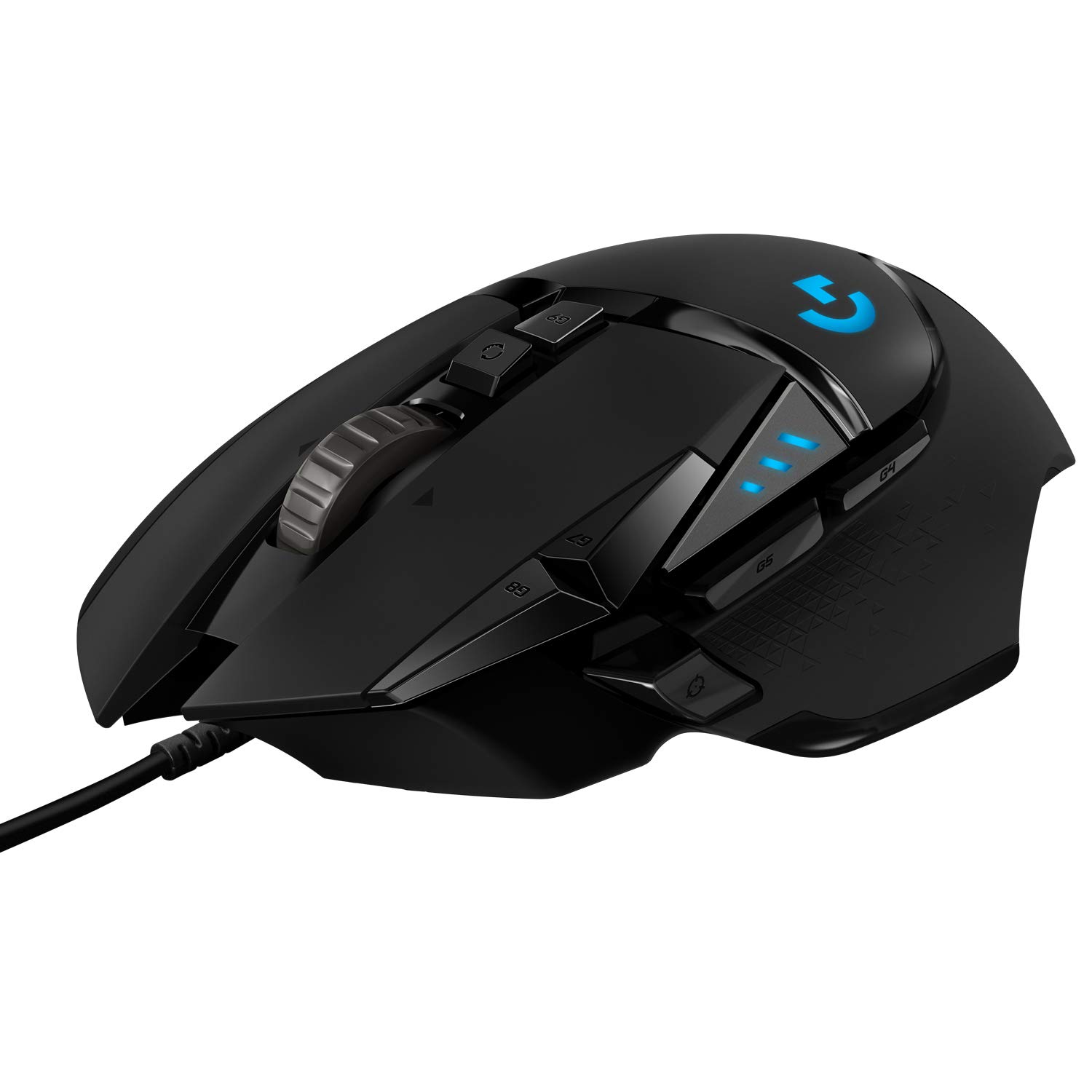
Keeping your mouse software current is a simple but effective maintenance step. Manufacturers release firmware and driver updates that can improve tracking behavior, resolve compatibility issues with newer operating systems, and fix polling rate inconsistencies. Check the manufacturer support page periodically rather than relying solely on automatic updates, as some tools require manual initiation for major releases. For example, the Logitech G502 HERO Wired Gaming Mouse, Black benefits from Logitech software for keeping firmware current and adjusting settings.
Store your configuration profiles within the software rather than relying on onboard memory alone, unless you frequently switch computers. This provides a backup if the mouse resets or if you replace it with a similar model. Additionally, avoid setting extreme polling rates or unnecessary high-resolution modes if your system struggles to keep up, as this can cause input inconsistencies that mimic hardware problems. Match your settings to your actual usage rather than maxing out every parameter.
Storage and Environmental Considerations
How you store gear between sessions and during transport directly impacts its lifespan. Keep the mouse away from direct sunlight and heat sources, as prolonged exposure can warp plastic shells, degrade rubber grips, and weaken adhesive bonds on the feet. If you attend LAN events or travel with your setup, use a padded mouse pouch or the original packaging to protect the shell from impacts and pressure that can crack the housing or damage buttons.
Humidity is another factor, particularly in damp environments. High moisture levels can corrode internal contacts over time and promote sticky residue buildup on the shell. Store peripherals in a dry area, and if you live in a humid climate, consider a small desiccant pack in your gear bag. Keeping your desk surface clean and free of crumbs or liquids is equally important, as spills are among the most common causes of sudden peripheral failure.
Recognizing When Maintenance Is No Longer Enough
Even with diligent care, every peripheral eventually reaches the end of its functional life. The most common signs that maintenance cannot fix are double-clicking on the primary buttons, scroll wheel encoder failure, and sensor drift that persists after thorough cleaning. Double-clicking usually indicates mechanical switch wear, and while it can sometimes be mitigated with contact cleaner, it is typically a sign the switches are nearing failure. Scroll wheel issues often stem from encoder wear, which is difficult to repair without soldering skills.
Before replacing a mouse, work through a troubleshooting checklist: clean the sensor, inspect and replace the feet, test on a different surface, try another USB port, and reinstall the software. If problems persist across all of these variables, the hardware is likely the culprit. When shopping for a replacement, consider how the failed component influenced your experience. If the switches wore out quickly, research models rated for higher click durability. If the cable frayed, weigh whether a wireless model might better suit your habits and reduce that failure point entirely.
Frequently asked questions
How often should I clean my gaming mouse?
Wipe the exterior weekly with a dry or barely damp microfiber cloth. Clean the sensor cavity monthly or whenever you notice tracking inconsistencies. Deep cleaning, including the wheel and feet, can be done every few months depending on usage intensity.
Can I use rubbing alcohol to clean my gaming mouse?
Use isopropyl alcohol sparingly and only on hard plastic surfaces or adhesive residue. Avoid using it on rubberized grips or textured coatings, as it can dry out the material and cause cracking or discoloration. A mild soap solution is gentler for general cleaning.
Why does my mouse feel sluggish even after cleaning?
Check the mousepad for wear or embedded dirt, as this surface affects glide significantly. Inspect the mouse feet for scratches or lifted edges, and consider replacing them. Also verify your software settings, as polling rate or sensor resolution changes can create a sluggish feel.
Is it safe to use compressed air on the sensor?
Yes, compressed air is safe for the sensor cavity when used in short bursts with the can held upright. This prevents liquid propellant from escaping. Avoid shaking the can during use, and keep the nozzle at a reasonable distance from the lens.
When should I replace my gaming mouse instead of maintaining it?
Replace the mouse if you experience persistent double-clicking, scroll encoder failure, or sensor drift that remains after cleaning and testing on different surfaces and ports. These are typically hardware failures that maintenance cannot reliably resolve.